
User documentation
Clapilot step by step
This guide explains every area of Clapilot with real screenshots: where to find things, what each control does, and how to get typical work done – on your own or together with the agent.
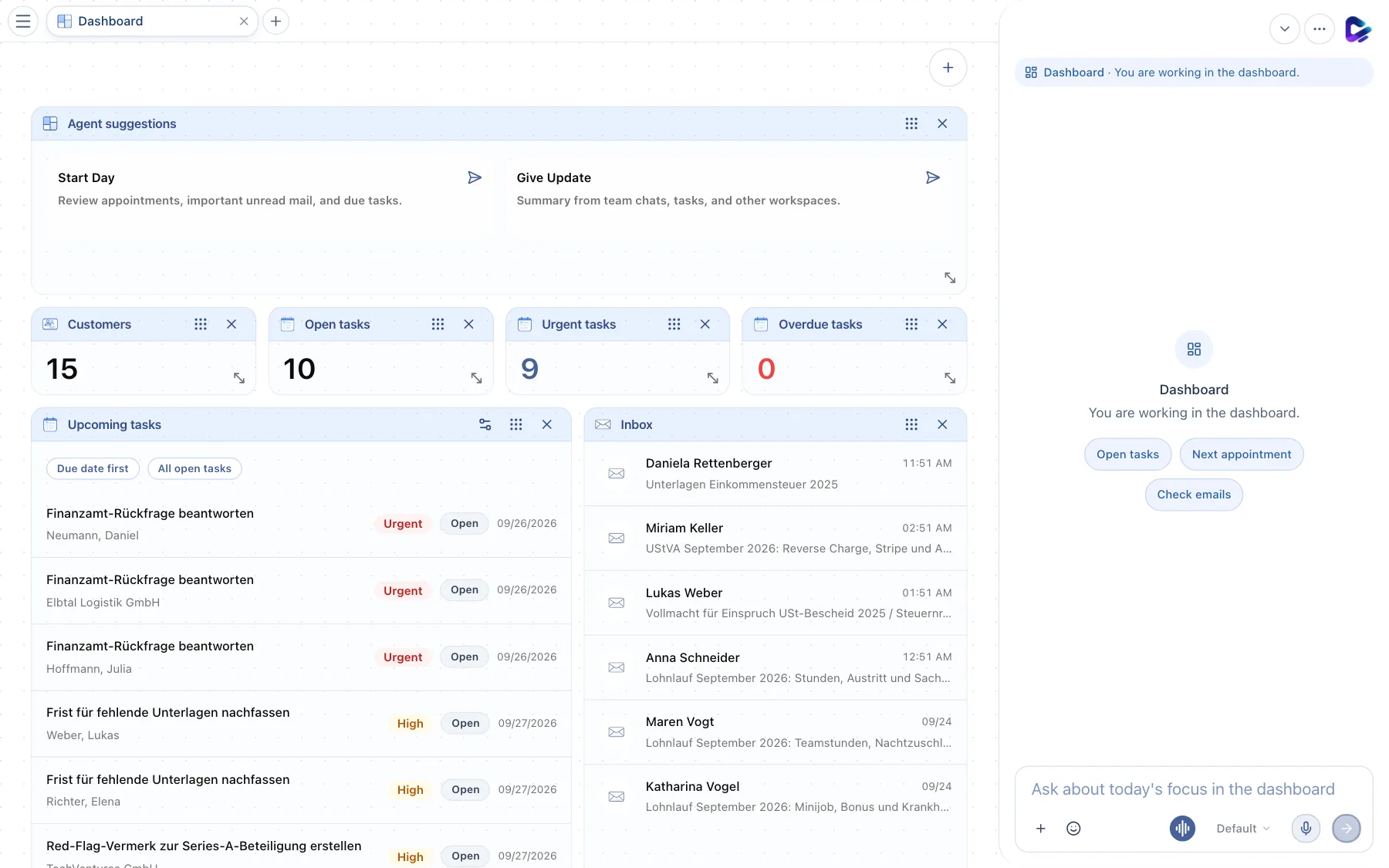
All screenshots come from a fictional demo workspace of a tax advisory firm. Names, addresses, and content are made up. Screenshots as of 2026-10-01.
Start here
New to Clapilot? These three chapters get you started. After that, jump straight to the areas you use every day.
- 1Getting startedSign in, set up your profile, connect your mailbox and check that everything works – your first 20 minutes in Clapilot.
- 2The workspaceTabs, menu, chat dock and notifications – how the Clapilot screen is laid out and how to find your way around it.
- 3Working with the agentChat, chat dock, sessions, mentions, approvals and good instructions – how to use the AI agent as a colleague.
Basics
Getting startedSign in, set up your profile, connect your mailbox and check that everything works – your first 20 minutes in Clapilot.The workspaceTabs, menu, chat dock and notifications – how the Clapilot screen is laid out and how to find your way around it.Working with the agentChat, chat dock, sessions, mentions, approvals and good instructions – how to use the AI agent as a colleague.


Daily work
DashboardYour start page with metrics, upcoming tasks, inbox and agent suggestions – and how to adapt it to your work.EmailsInbox, smart view, reply drafts, filters and folders – how to read and answer emails in Clapilot and turn them into tasks.TasksBoards, Kanban and list, filters, assignments, comments and handing work to the agent – how to organize tasks in Clapilot.CalendarWeek and day views, creating events by drag and drop or in plain language, seeing deadlines and importing or exporting calendars.ContactsThe client file in Clapilot – finding, filtering and creating contacts, reading the workflow center and keeping track of documents, tasks and emails for each contact.DocumentsUpload, organize and find files and review them in the preview with AI analysis – plus edit, share and send Word, Excel and Markdown files right in Clapilot.Team ChatChannels, direct messages and agents in Team Chat – how to coordinate with your team and bring the agent into conversations.


Knowledge & content

Automate & extend
Automations and specialized agentsSchedule recurring jobs for the agent, react to new emails or documents, use blueprints and set up specialized agents for their own areas of work.Store and modulesFind and install modules, skills, widgets and specialized agents in the Store – with an overview of all optional modules such as Social Media, Call & Fax Agent, Physical mail and Video Studio.


Settings & administration
SettingsProfile, language, chat options, menu, email signature and filters, heartbeat, password, app connections and module settings – everything you can set up for yourself.AdministrationFor administrators – invite users, configure the agent, AI providers and models, the assistant mailbox, features, modules, backup and storage.

