

Tasks
Boards, Kanban and list, filters, assignments, comments and handing work to the agent – how to organize tasks in Clapilot.
Open in ClapilotTasks are your team's shared work queue. They are created by hand, from emails, from documents, from Team Chat or by the agent – and you can hand them to people or to the agent. All tasks are visible to the whole team unless a board is explicitly private.
The board
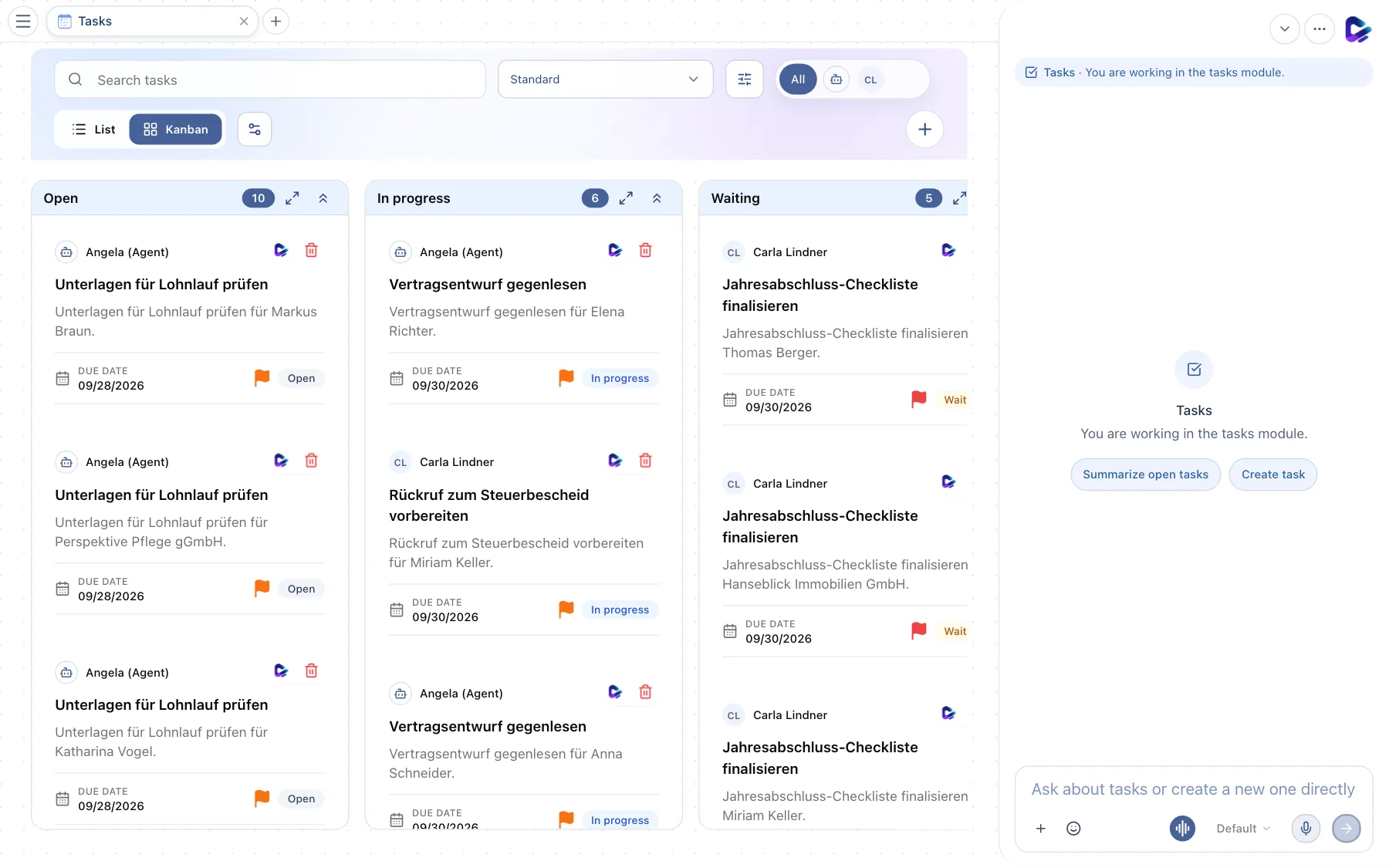
- Search tasks – searches titles and descriptions.
- Choose board – switches between boards or shows All boards. This is also where you create new boards – empty or from a template – and manage existing ones.
- Filters – by status, priority, due date, assignee, follow-up, revenue and tag.
- Assignee – All or an avatar shows only the tasks of that person or of the agent.
- List / Kanban – switches the view.
- Configure board – add, rename, reorder or delete status columns. System statuses such as Open and Done are always kept.
- New task – opens the dialog for creating a task.
- Status column – with the number of tasks in it. Drag a card to another column to change its status.
- Collapse column – collapses or expands a column; the icon next to it focuses a column and shows only that one.
Each card shows who the task is assigned to, the title, a short description, the due date, the priority (flag) and the status. Right-click a card to open Quick actions: Assign to, Move to and Set priority.
The list view
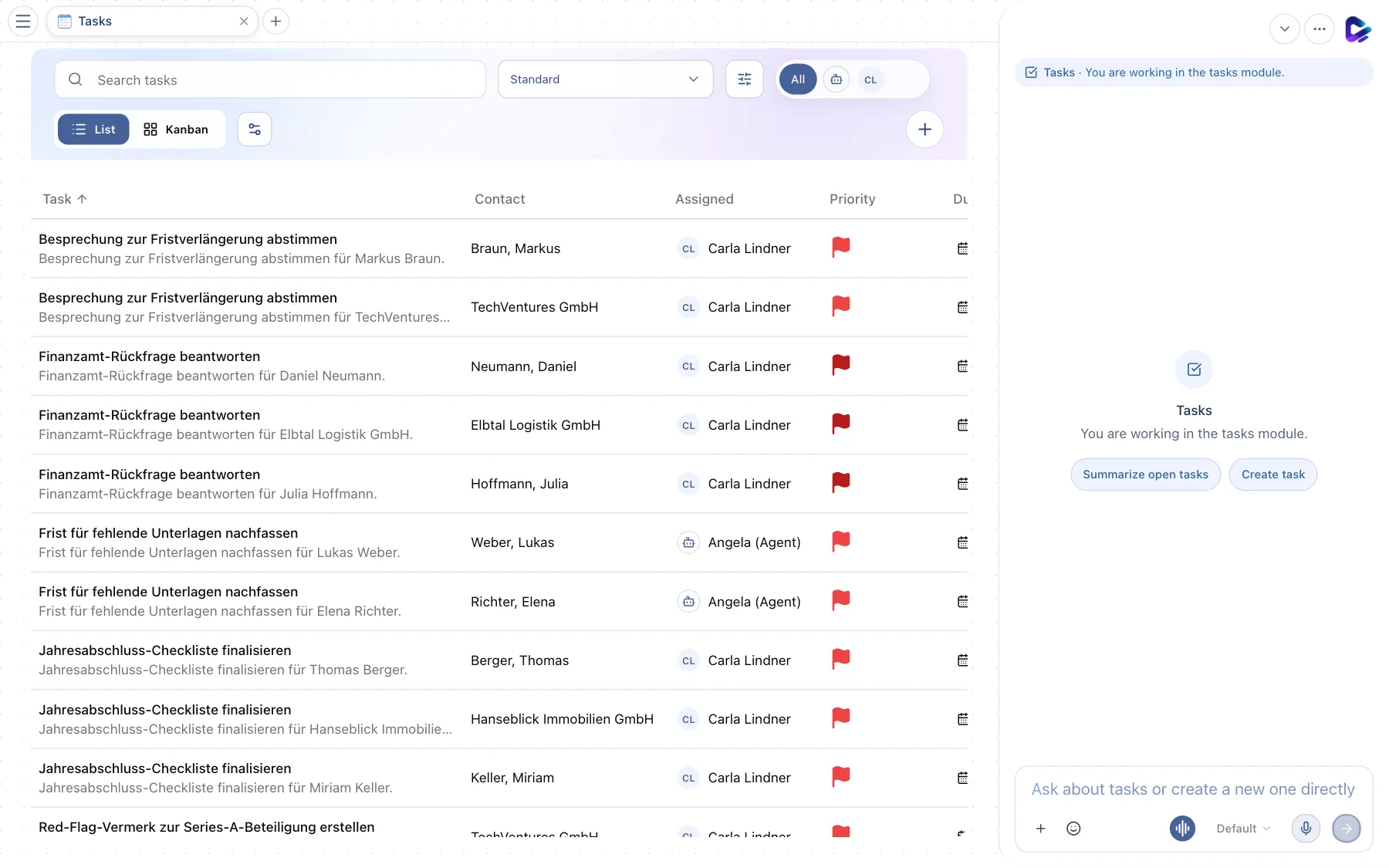
- List – switches to the table view.
- Column headers – Task, Contact, Assigned, Priority, Due and Status. Click one to sort by that column.
Click a row to open the task; when a row has focus, Enter opens it in full view.
Creating a task
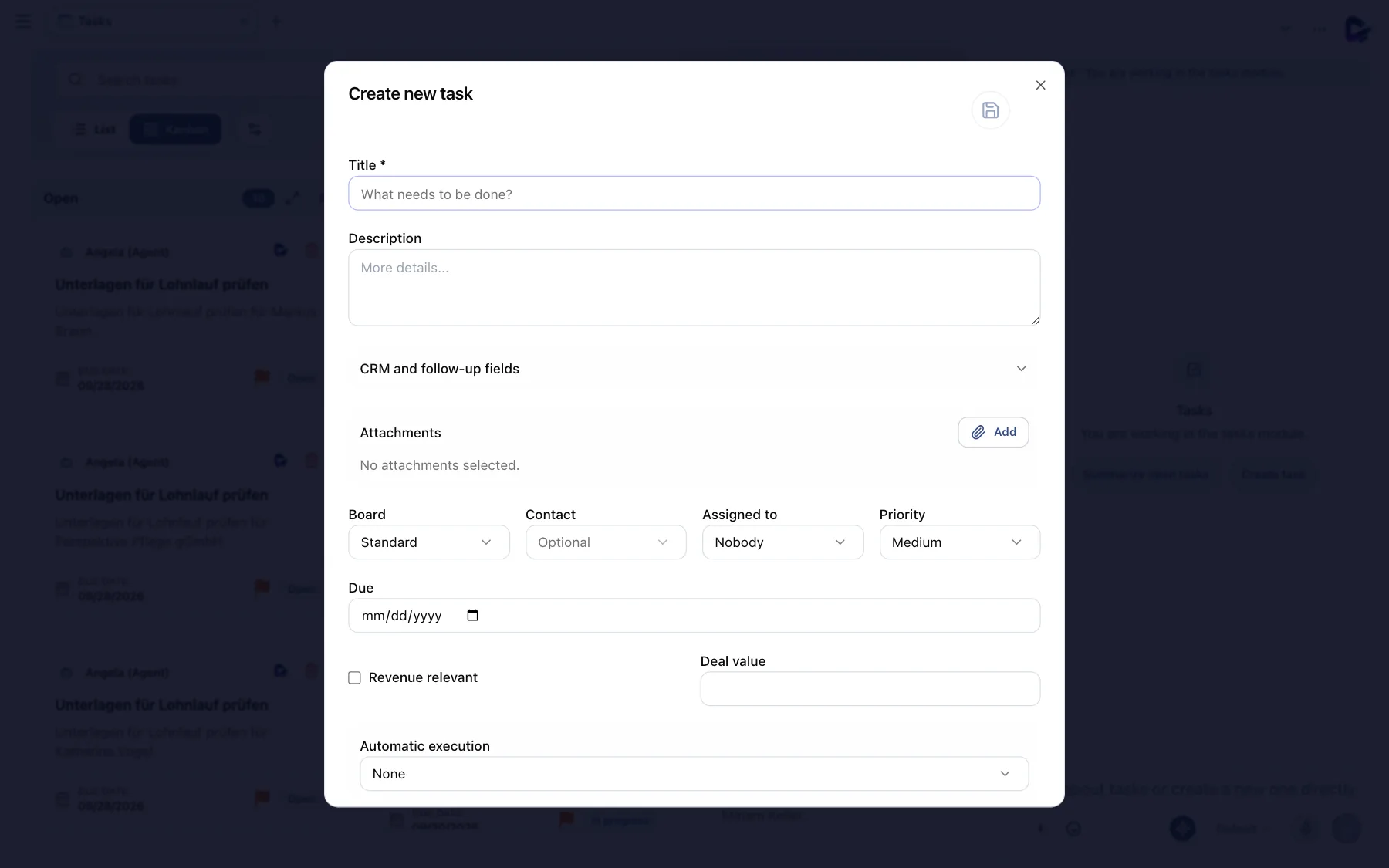
- Title – the only required field.
- Attachments – attach files directly to the task.
- Board – which board the task goes to. Next to it, you choose the Contact it belongs to.
- Assigned to – a person or the agent. To the right, you set the Priority: Low, Medium, High or Urgent.
- Due – the due date.
- Automatic execution – lets the agent work on the task by itself: once, at an interval or on specific weekdays at a set time.
Under CRM and follow-up fields you find extra fields for sales and account management work, such as follow-up date, deal value and Revenue relevant.
It's faster in the chat: “Create a task: request documents from Perspektive Pflege, due Friday, priority high, assigned to Mira.”
Opening and editing a task
Click a card to open the task.
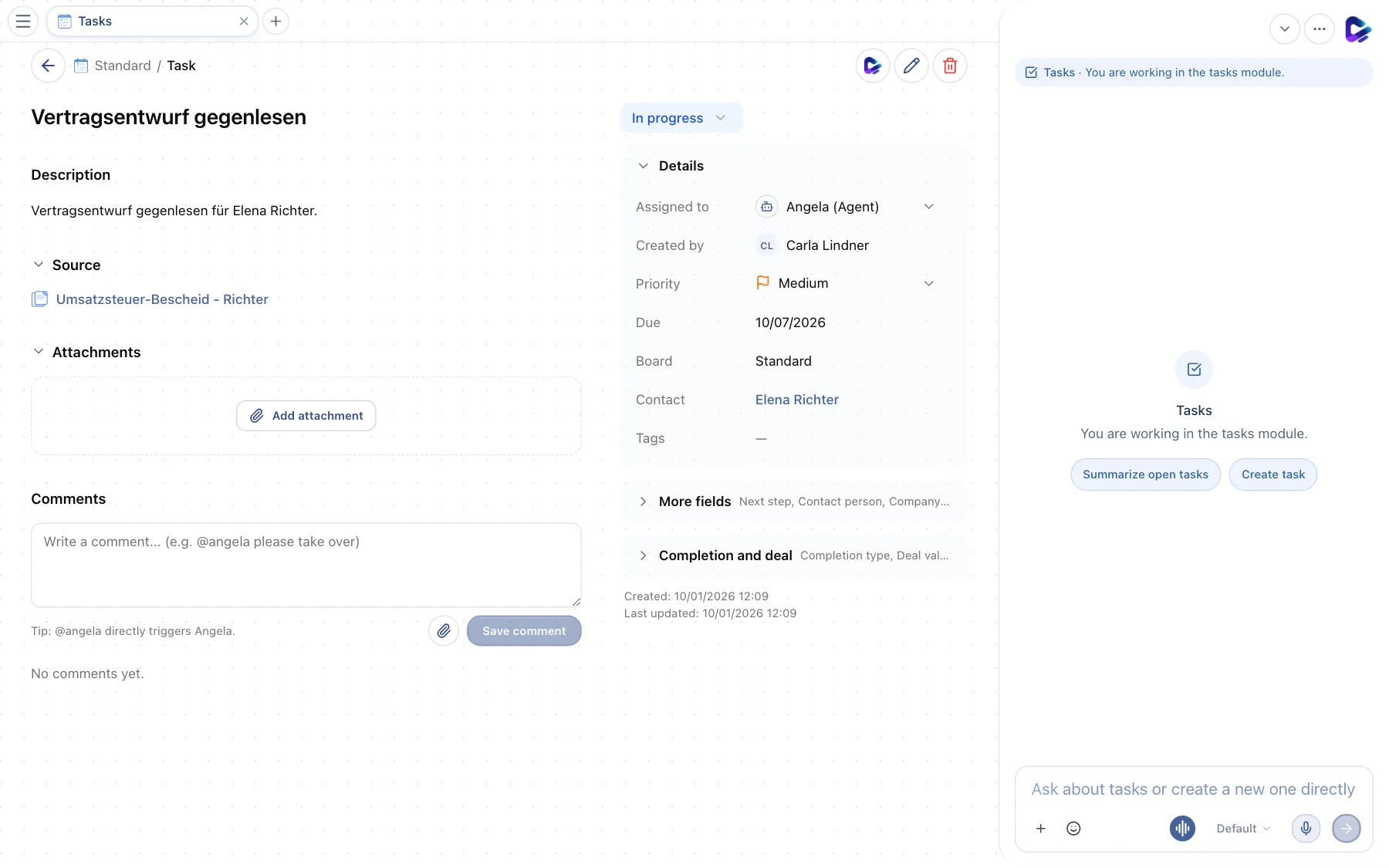
- Back – returns to the board (or press Esc).
- Delegate to Angela – hands the task to the agent, which works on it and records the result in the comments. Next to it, you edit the task (pencil) or delete it.
- Source – where the task came from: Email, Document, Team Chat, Issue Reporter or Created manually, with a summary.
- Status – click to open the status list; the change is saved immediately.
- Details – assignee, creator, priority, due date, board, contact and tags. You can change Assigned to and Priority right here without entering edit mode. Click the contact to open their case.
The view is laid out like a ticket: title, description, attachments and comments on the left, fields on the right. Below them you can expand More fields (CRM and follow-up fields) and Completion and deal. Add attachments at any time with Add attachment or by drag and drop. In a narrow window the sidebar moves below the content.
Comments and mentions
At the bottom of the task, you discuss it with your team. If you mention the agent, it does what you ask and replies in the same thread.
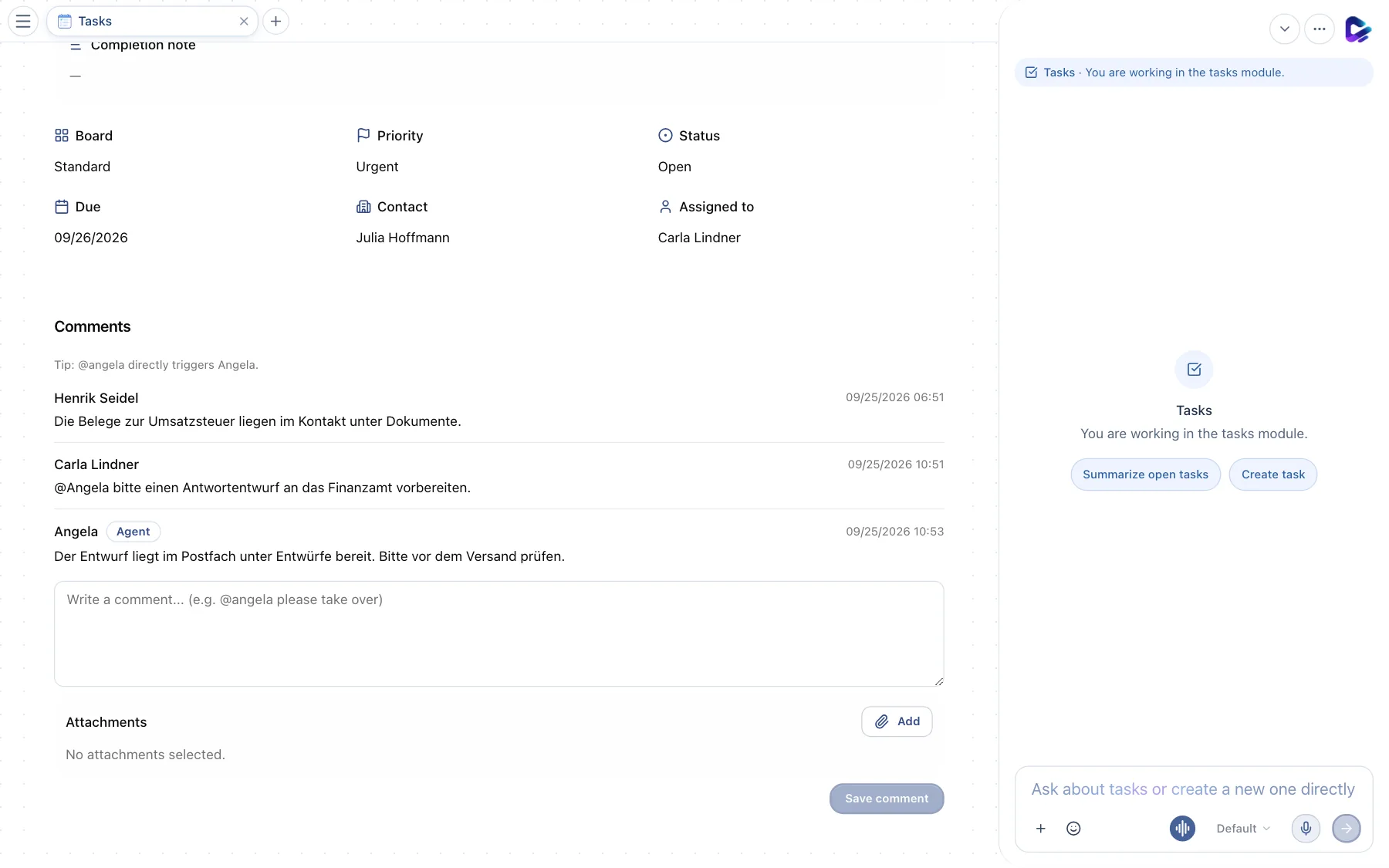
- Comments – the thread with comments from colleagues and the agent.
- Mention – with
@angelayou give the agent a job directly from the task. Its reply is labeled Agent.
What you can ask the agent
- “Show overdue tasks.”
- “Which tasks does Mira have open this week?”
- “Move all tasks for Elbtal Logistik to next Monday.”
- “Create a task for every email with a deadline this week.”
Delete boards with the agent
For example, ask: “Delete the empty BM boards.” The agent identifies the matching boards and uses the normal deletion path with approval and audit logging. If a board contains tasks, explicitly choose a destination board to preserve them. Forced task deletion is not supported. Standard and active agent boards are protected; only the owner can delete private boards. Repeated requests report boards that were already deleted.